October 2, 2026
How to Remove an Object From a Photo With AI
The short answer
Open a photo in Nano ImageEdit 2.0 Online, choose the Remove tool, name the object you want gone, and press Generate. The background behind it is filled in to match the scene, and for object edits the rest of the photo is kept identical to your original.
What you need
Steps
Be specific, because the model takes you literally
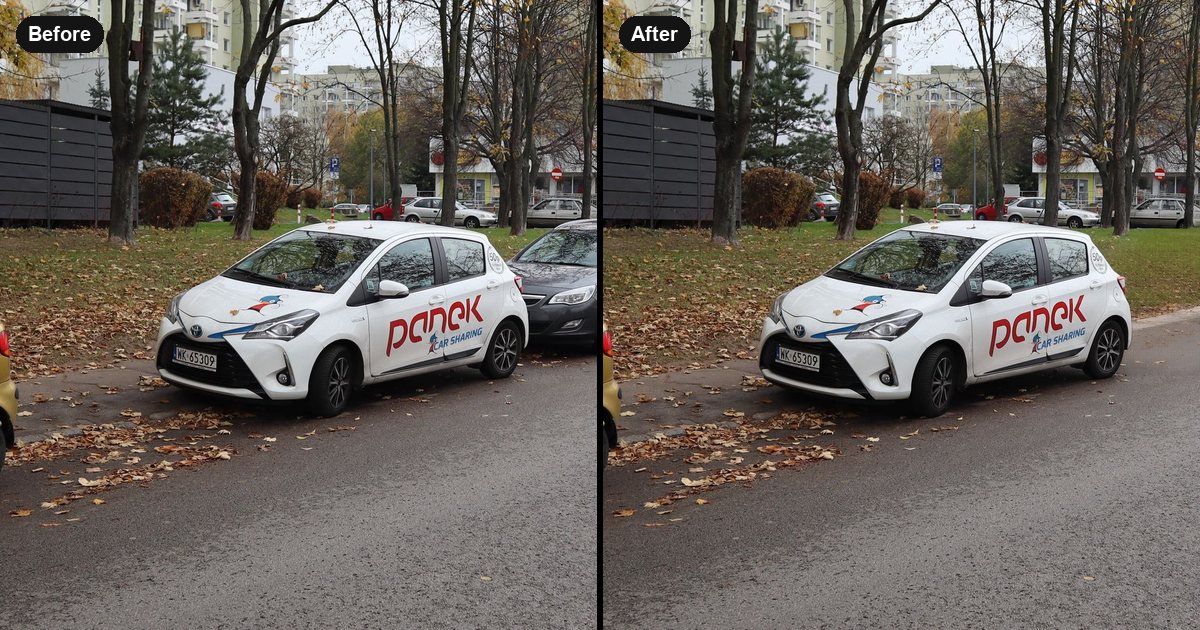
In our test photo there are four parked cars. Our first instruction was "the parked car". It removed the grey hatchback and also the red car beside it, because both qualified. Naming the grey hatchback and where it stands removed only that car.
The second version removed one car. The editor reported that 4.84% of the image changed and that every other pixel was identical to the original, which you can verify in the Changes view.
What to expect
When to ask for variations
The fill is generated, so two runs can differ. If an edge looks soft or the pattern behind the object repeats, ask for up to four variations in one go and keep the best one. Each variation is a separate edit and is charged separately.
Related guides
The street photo is "Parked Panek car, Batuty street, Warsaw.jpg" from Wikimedia Commons, licensed CC BY-SA 4.0; the edited version is shared under the same licence.
Try it on your own photo
Nano ImageEdit 2.0 Online costs 50 credits ($0.50) per edit, and an edit that fails is refunded. New accounts get free credits.
Open Nano ImageEdit 2.0 Online