October 2, 2026
How to Replace an Object in a Photo With AI
The short answer
Use the Replace tool in Nano ImageEdit 2.0 Online: say what to replace and what to put there, and it swaps one for the other in the same place, matching the scene's light. The rest of the photo is kept identical.
Steps
Prices and times on this page are those of Nano ImageEdit 2.0 Online on the day it was written: 50 credits ($0.50) per finished edit, usually 30 to 50 seconds, with the first edit after a quiet period taking one to two minutes longer.
A real example, and the fix that mattered
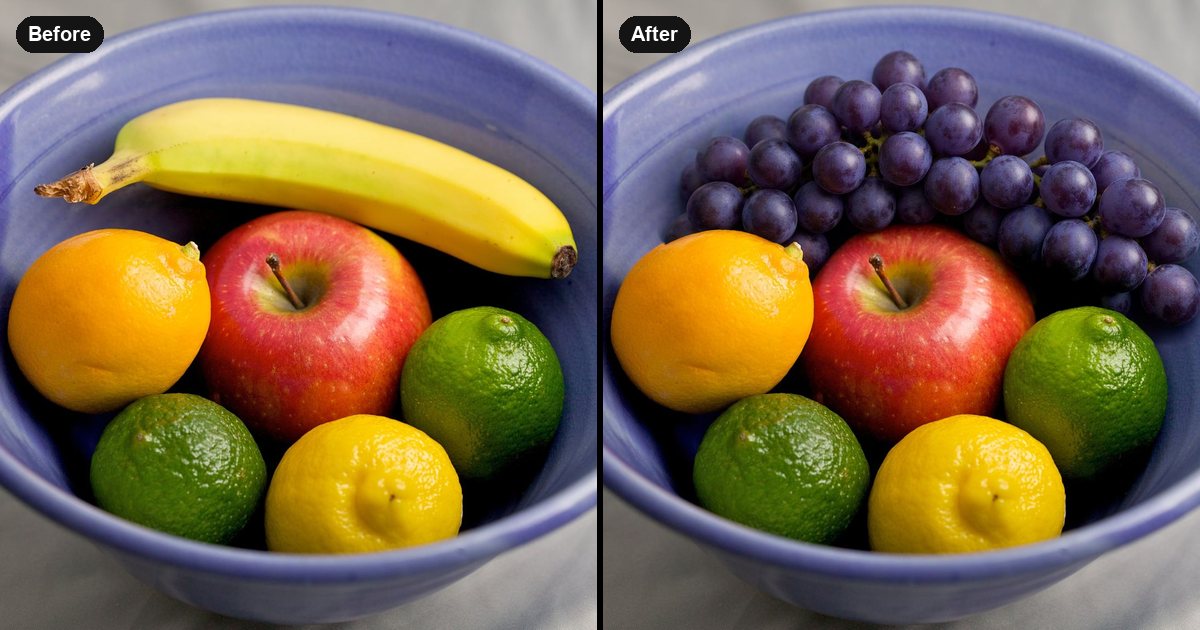
We replaced the banana in a fruit bowl with a bunch of purple grapes. The first result was good except for one thing: a small fragment of the banana's stem was left at the edge of the bowl. The model had replaced the fruit and not the stem.
We ran it again with one change to the wording: "the banana, including its stem". The second result had no leftover. The editor reported that 17.07% of the image changed and that all the rest, the apple, the citrus fruit and the bowl, was identical to the original.
The lesson applies to any replacement: if an object has a part that is easy to miss, such as a stem, a handle, a shadow or a cable, name it.
Tips for better swaps
What it costs
50 credits ($0.50) per finished edit. A failed or cancelled edit is refunded in full.
Related guides
The fruit photo is "Fruit Bowl (4880797613).jpg" from Wikimedia Commons, licensed CC BY 2.0.
Try it on your own photo
Nano ImageEdit 2.0 Online costs 50 credits ($0.50) per edit, and an edit that fails is refunded. New accounts get free credits.
Open Nano ImageEdit 2.0 Online